Transferring Files with Globus#
For large data transfers between NLR’s high-performance computing (HPC) systems and another data center, or even a laptop off-site, we recommend using Globus.
What Is Globus?#
Globus provides services for research data management, including file transfer. It enables you to quickly, securely and reliably move your data to and from locations you have access to.
Globus transfers files using GridFTP. GridFTP is a high-performance data transfer protocol which is optimized for high-bandwidth wide-area networks. It provides more reliable high performance file transfer and synchronization than scp or rsync. It automatically tunes parameters to maximize bandwidth while providing automatic fault recovery and notification of completion or problems.
Get a Globus Account#
Internal Users#
Globus has linked institutional identities with NLR, so if you are an NLR employee, you should set up your Globus account using your NLR account.
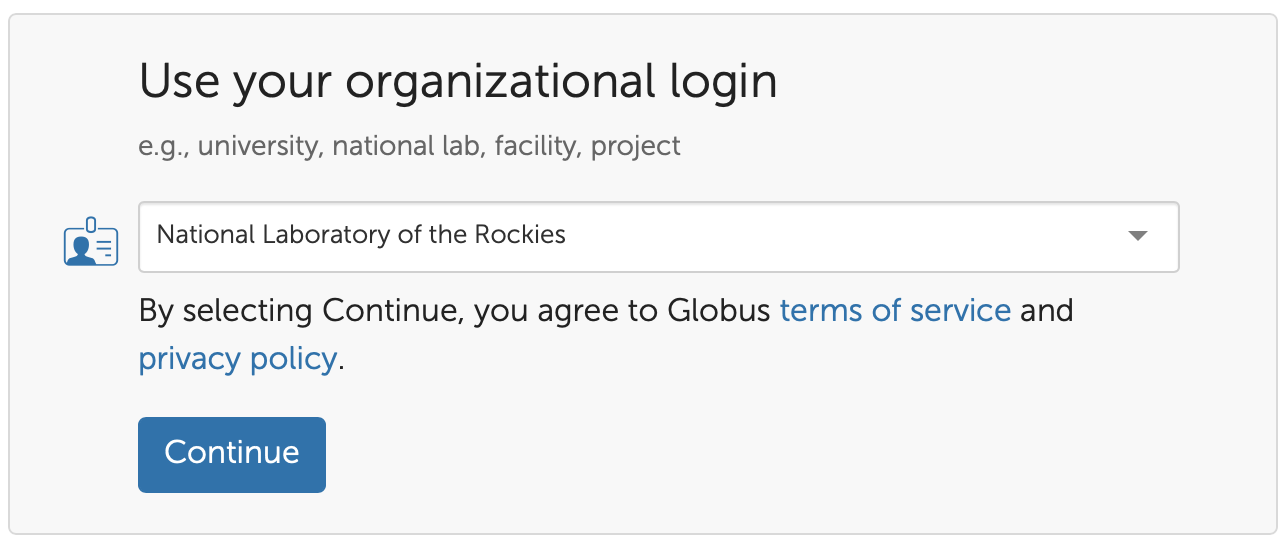
- Navigate to the Globus Login Page (sign out if you are logged in), and in the dropdown menu under "Use your organizational login", type "NLR" and select the "National Laboratory of the Rockies" option.
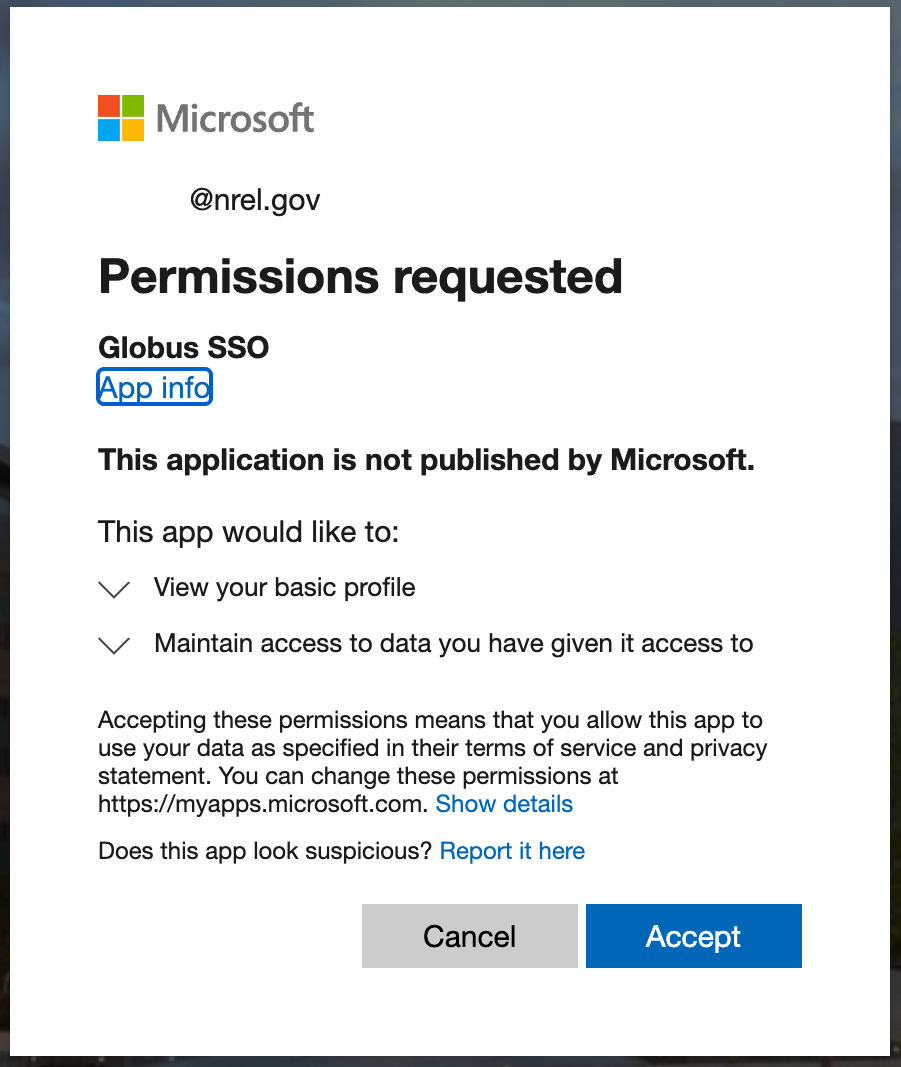
- Log in using your NLR account and click "Accept" for Globus SSO.
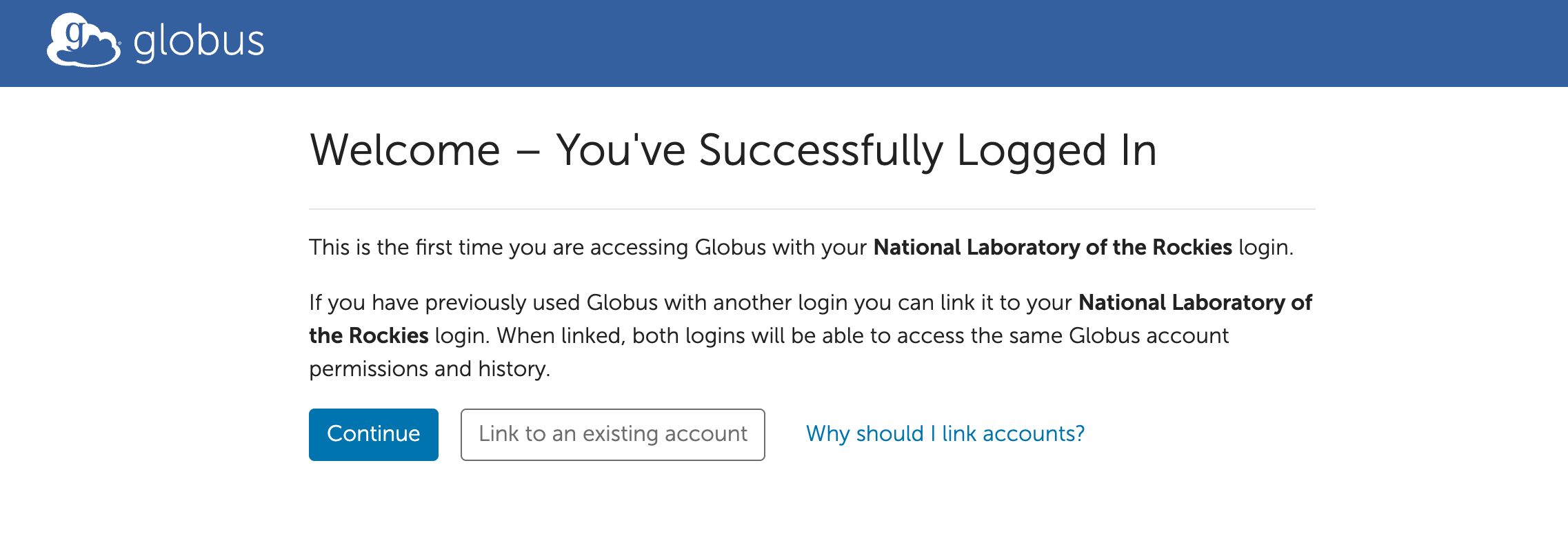
- Once you have successfully logged in, you will see two options: "Continue" and "Link to an existing account". If you have previously used Globus (via another institution or GlobusID), please select "Link to an existing account" and move to step 4. Otherwise, select "Continue" and you are done.
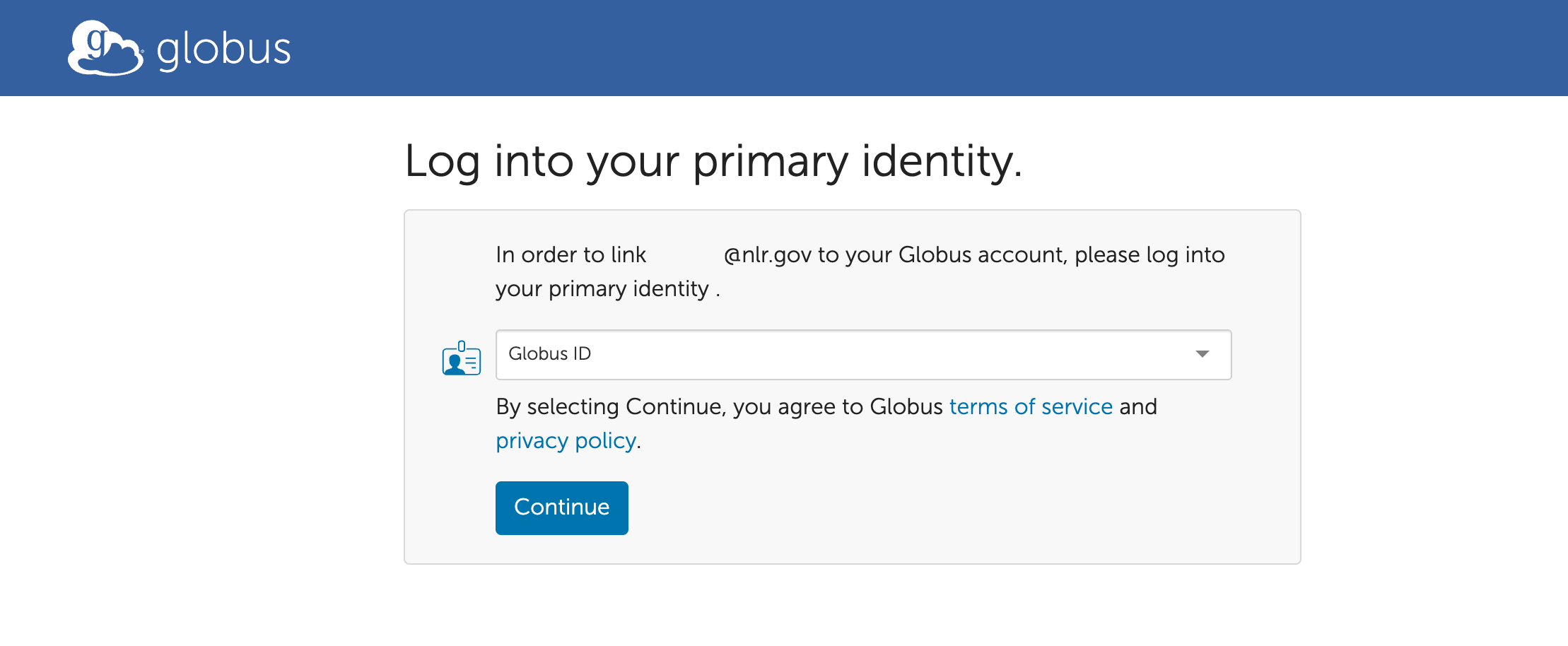
- Now, select the other institution from the dropdown menu and log in using the credentials for that Globus account. Then, your accounts will be linked along with your identities and bookmarks.
External Users#
If this is your first time using Globus, get a Globus account by signing up on the Globus ID account website.
If you previously had an account, you may use that account and follow the steps below to connect to the NLR Globus endpoints.
Globus NLR Endpoints#
The current NLR Globus Endpoints are:
- nrel#kglobus_projects - This endpoint will give you access to any files you have on the Kestrel Project File System: /datasets, /projects, and /shared-projects.
- nrel#kglobus_scratch - This endpoint will give you access to any files you have on the Kestrel Scratch File System: /scratch.
- nrel#vast - This endpoint will give you access to files you have on our VAST file system: /campaign and /bscl. It is available for other shares on VAST upon request.
Warning
Note that if you already have a Globus account with a different institution, such as a university, be sure to select an "NLR OIDC" identity as the "Owner Identity" when connecting to an NLR endpoint. Otherwise, you will encounter permission errors.
Globus Personal Endpoints#
You can set up a "Globus Connect Personal EndPoint", which turns your personal computer into an endpoint, by downloading and installing the Globus Connect Personal application on your system.
Set Up a Personal EndPoint#
- Download Globus Connect Personal
- Once installed, you will be able to start the Globus Connect Personal application locally, and login using your previously created Globus account credentials.
- Within the application, you will need to grant consent for Globus to access and link your identity before creating a collection that will be visible from the Globus Transfer website.
- Additional tutorials and information on this process is located at the Globus Website for both Mac and Windows.
Transferring Files#
You can transfer files with Globus through the Globus Online website or via the CLI (command line interface).
Important
It is strongly recommended to compress multiple files into a single archive (tar.gz, zip) before transferring data with Globus.
To compress a directory:
tar -czvf filename.tar.gz /path/to/dir
tar -xzvf filename.tar.gz
Globus Online
Globus Online is a hosted service that allows you to use a browser to transfer files between trusted sites called "endpoints". To use it, the Globus software must be installed on the systems at both ends of the data transfer. The NLR endpoints are listed above.
- Click Login on the Globus web site. On the login page select "Globus ID" as the login method and click continue. Use the Globus credentials you used to register your Globus.org account.
- The ribbon on the left side of the screen acts as a Navigator, select File Manager if not already selected. In addition, select the 'middle' option for Panels in the upper right, which will display space for two Globus endpoints.
- The collection tab will be searchable (e.g. nrel), or one of the NLR endpoints (e.g. nrel#kglobus_projects) can be entered in the left collection tab. In the box asking for authentication, enter your NLR HPC username and password. Do not use your globus.org username or password when authenticating to the NLR endpoints.
- Select another Globus endpoint, such as a personal endpoint or an endpoint at another institution that you have access to. To use your personal endpoint, first start the Globus Connect Personal application. Then search for either the endpoint name or your username in the collections tab, and select your endpoint. After the first use, you should see your endpoints in the recent tab when searching. You may also setup an endpoint/directory as a bookmark.
- To transfer files:
- select the files you want to transfer from one of the endpoints
- select the destination location in the other endpoint (a folder or directory)
- click the 'start' button on the source collection, and it will transfer files to the target collection
- For additional information, the Globus Webpage has tutorials and documentation under the Resources tab.
When your transfer is complete, you will be notified by email.
Globus CLI (command line interface)
Globus supports a command line interface (CLI), which can be used for scripting and automating some transfer tasks. For more information, it is suggested that the user refer to the Globus CLI documentation located on the Globus Webpage.
For installing globus-cli, the recommendation is to use a Conda environment. In this case, it is advised to follow the instructions about mixing Conda and Pip, and only use Pip after establishing a base environment using Conda. For more information about mixing Conda and Pip, refer to our internal documentation at: Conda