4. Run and record
Each round, you run the queued points and record what you measured. This page enters results with Add Point..., loads them from a CSV file, and explains the Noise, Iteration and Reason columns.
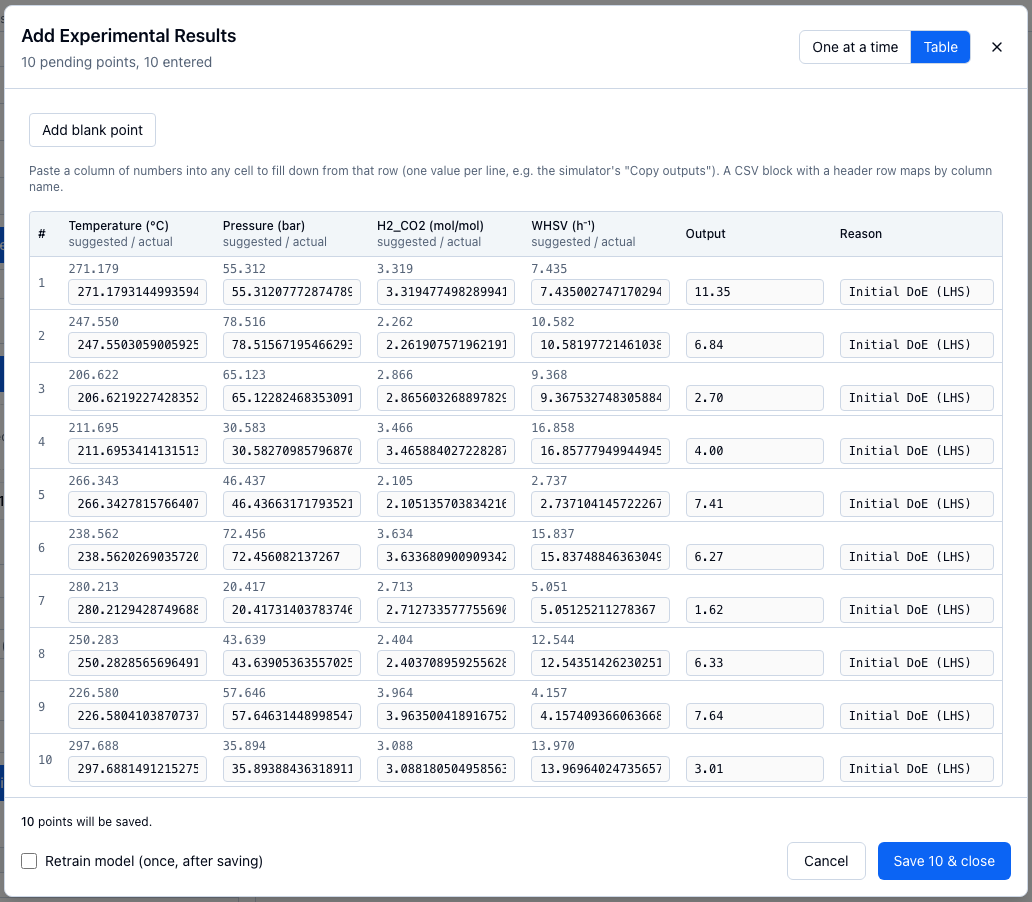
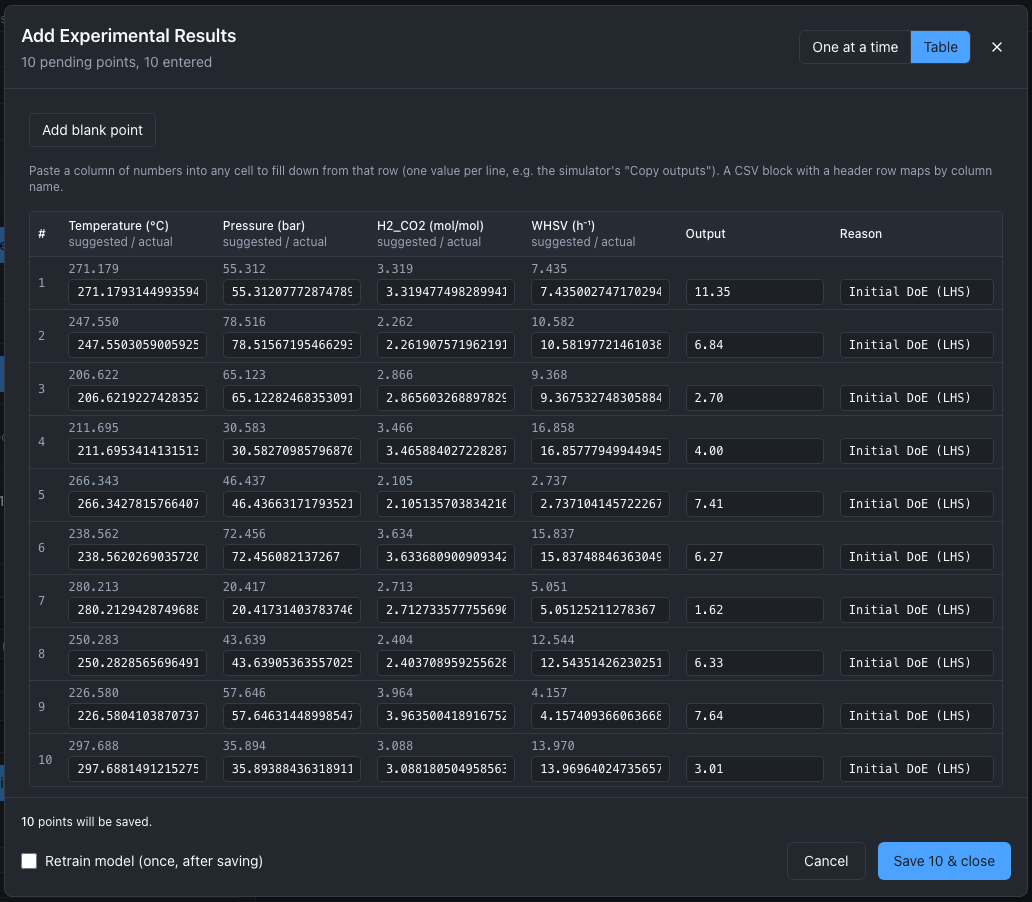
Ten simulated reactor yields pasted into the Output column in one go. Each actual value starts from the suggestion. The retrain box is unticked because no model has been trained yet.
The loop
Points join the queue when you choose Stage under Initial design or Stage Suggestions under Suggest next. Recording each result against its point keeps what was suggested beside what was run (Provenance). The Add Point... button in the Experiment Data panel shows how many points are waiting, for example "Add Point... (10)".
1. Record the staged points
- In Experiment Data, choose Add Point.... The Add Experimental Results dialog opens on the first waiting point.
- In the One at a time view, each variable shows the suggested value and an actual field filled in from it. Change the actual value wherever the run differed from the suggestion. A value outside the variable's range gets an amber note such as "outside 200–300"; you can still save it, since the equipment may have landed slightly outside.
- Type the result in Output, or in the field named after your objective when the session's results came from a CSV with another target column. Enter moves to the next point, as does Next →; ← Previous goes back. Entries are kept as you move, and if you close the dialog.
- Optionally fill Noise (optional) and edit Reason; see Noise, Iteration and Reason.
- Retrain model (once, after saving), ticked to start, refits the model with your last training settings. For the first batch, untick it and train from the Model tab; see Train a model.
- Choose Save N & close, where N is the number of points that have an output.
The line above the buttons says what will be saved, such as "8 points will be saved; 2 without an output stay pending (points 9, 10)". A value that is not a number, a negative noise or an empty actual field blocks the save. The save sends every point in one request and retrains once, if the session then has at least five results. If it fails, the dialog keeps your entries.
The Table view
Table shows every waiting point in one grid, with the suggested value above each actual field and columns for Output and Reason. Paste a column of numbers, one per line, into any cell: it fills that column from that row down, as in the screenshot. A pasted block with a header row is matched by column name instead. Separate its columns with commas, tabs or semicolons.
| Header in the pasted block | Fills |
|---|---|
| A variable's name, in any case | That variable's actual values |
Output, y, yield, target, result or objective |
Output |
Noise |
The noise of each point |
Reason |
Reason |
A header block's rows also apply from the pasted cell down, and a note says how many were filled and how many were left over.
2. Record a point nobody suggested
With nothing staged, Add Point... opens on one blank point: every actual field is empty and the reason is Manual. Fill in every variable and the output, then save. Add blank point, in either view, adds another empty point after the staged ones, for an extra run beside a batch. Closing the dialog discards unsaved blank points.
Multi-objective sessions
Add Point... records one output. On a multi-objective session the point is refused rather than recorded with the other objectives empty. Load multi-objective results from a CSV, or from Python pass add_experiment a dict with every objective; see Multi-objective.
3. Load results from a CSV
- In Experiment Data, choose Load CSV and pick the file. Its variable columns must be named exactly as the variables.
- A file with a column named
Outputloads at once. Otherwise Select Target Column(s) opens: keep Single-Objective, pick the column that holds the result, and choose Confirm. Multi-Objective takes several target columns; see Multi-objective.
Loading replaces the session's results with the rows of the file. Other columns stay in the table and are not model inputs. Every column ALchemist reads is listed under File formats.
Known issue
W6: without a column named output, y, target, yield or response, no column is recommended and the dialog pre-selects the first column, usually a variable. Check the choice before Confirm.
Noise, Iteration and Reason
| Column | Holds | In the web app |
|---|---|---|
Noise |
The variance of the measurement, the square of its standard deviation. | Noise (optional) in One at a time, or a Noise column in a pasted block or the CSV. |
Iteration |
The round of the campaign. | Read-only in the dialog, where "Auto" means the next free number. Design points each take the next free number, and the points of one suggestion round share the number the suggestion returned. A CSV without the column gets 0 on every row. |
Reason |
Why the run was done. | Filled in from the point, for example Initial DoE (LHS) for a design, the strategy such as qEI for a suggestion, or Manual for a blank point. You can edit it. |
Give a noise value on every row or on none: training refuses a mix with "Give every row a noise value or none." and names the rows without one. A Noise column that is empty on every row counts as no noise; BoTorch then learns one noise level for all rows (Gaussian processes).
Noise is a variance
The models use the noise as a variance (σ²): BoTorch as train_Yvar, scikit-learn as alpha. If what you have is a standard deviation, square it before you enter it.
From Python or REST
from alchemist_core import OptimizationSession

session = OptimizationSession()
session.add_variable("temperature", "real", bounds=(200.0, 300.0), unit="°C")
session.add_variable("pressure", "real", bounds=(20.0, 80.0), unit="bar")


def run_in_lab(point):
    """Stands in for the experiment: a smooth response that peaks near 260 °C and 55 bar."""
    t = (point["temperature"] - 260) / 50
    p = (point["pressure"] - 55) / 30
    return round(10 - 6 * t**2 - 3 * p**2, 2)


design = session.generate_initial_design("lhs", n_points=8, random_seed=7)
items = [session.queue.stage(point, reason="Initial DoE (LHS)") for point in design]
for item in items:
    session.complete_experiment(item.id, actual_inputs=item.inputs, output=run_in_lab(item.inputs))

session.add_experiment({"temperature": 255.0, "pressure": 60.0}, output=9.6, reason="Manual")
print(session.experiment_manager.get_data()[["temperature", "Output", "Iteration", "Reason"]].tail(3))
complete_experiment records a staged point with the conditions run; add_experiment adds an unstaged one. load_data reads a file, and the noise rule applies at training:
table = session.experiment_manager.get_data()
runs = table[["temperature", "pressure"]].assign(yield_pct=table["Output"], Noise=0.04)
runs.to_csv("runs.csv", index=False)

loaded = OptimizationSession()
loaded.add_variable("temperature", "real", bounds=(200.0, 300.0), unit="°C")
loaded.add_variable("pressure", "real", bounds=(20.0, 80.0), unit="bar")
loaded.load_data("runs.csv", target_columns="yield_pct")

loaded.add_experiment({"temperature": 280.0, "pressure": 30.0}, output=5.1)  # no noise
try:
    loaded.train_model(backend="botorch")
except ValueError as err:
    print(err)
The dialog's save is one record-batch request. An entry with item_id completes that staged point; one without is a new point.
POST /api/v1/sessions/{session_id}/experiments/record-batch?auto_train=true
Content-Type: application/json

{
  "entries": [
    {"item_id": "3f1c0b52", "inputs": {"temperature": 271.2, "pressure": 55.3}, "output": 11.35, "iteration": 3},
    {"inputs": {"temperature": 255.0, "pressure": 60.0}, "output": 9.6, "reason": "Manual"}
  ]
}
One bad entry rejects the whole request; the fields and errors are under Staging and the work queue. To load a file, send it as multipart form data in a file field:
POST /api/v1/sessions/{session_id}/experiments/preview returns the file's columns, has_output and recommended_target, from which the app decides whether to ask.
How ALchemist does it
A row takes the next free Iteration unless one is given. A row recorded against a staged point, or through record-batch, gets a ProvenanceId linking it to its provenance record. The retrain after a save reuses session.get_last_training_config(). The dialog is alchemist-web/src/components/AddPointDialog.tsx, and the route record_results_batch in api/routers/experiments.py. Where recording sits in the loop is in Bayesian optimization.