1. Define variables
A variable is a setting you choose for each experiment, such as a temperature or a catalyst. This page defines the variables of a session, saves them to a file and loads them back.
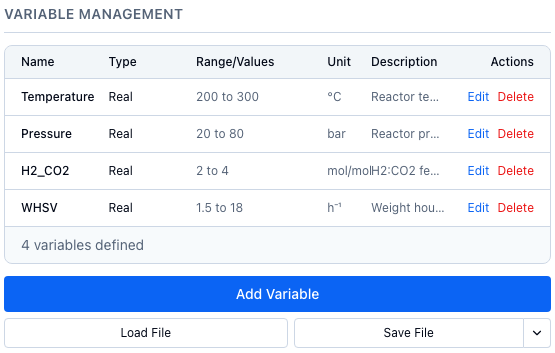
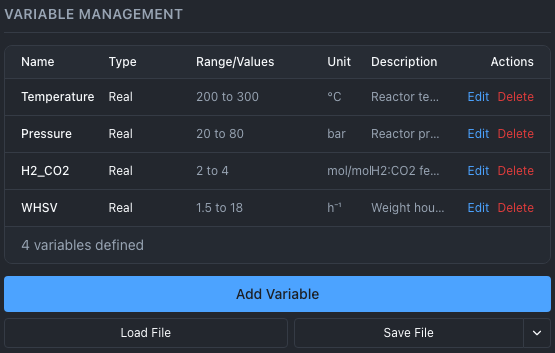
The Variable Management panel on four simulated reactor variables. Each row has Edit and Delete; the buttons below add a variable, load a file or save one. The arrow beside Save File opens the Save and Save As menu.
Variable types
Pick the type that matches how the setting can change.
| Type menu | type in Python and REST |
You give | The variable takes |
|---|---|---|---|
| Real (Continuous) | real |
Min and Max | Any number between the bounds. |
| Integer (Range) | integer |
Min and Max, whole numbers | Whole numbers from Min to Max. |
| Discrete (Specific Values) | discrete |
Allowed Values, at least two numbers, no duplicates | Only the numbers you list, such as 80, 280 and 450. |
| Categorical | categorical |
Categories, at least one | One of the names you list. The names have no order. |
A discrete variable is a number to the model, but designs and suggestions use only the values you listed. One more word before the controls: the quantity you measure and optimize is the objective; the web app and the session file keep it in the Output column (or a column you name when you load a CSV, the target column), and the concepts pages call it the response. The same number under four names. Unit (optional) and Description (optional) are labels. They appear in the list and in saved files, and the model does not use them.
Role and Changes say whether you set a variable or only measure it, and how hard it is to change between runs. Leave them on Controllable and Easy unless you need an Observed (measured) variable or a split-plot design; see Split-plot designs.
1. Add a variable
- In the Variable Management panel, choose Add Variable.
- Type a Variable Name. Names are unique within a session.
- Pick the Type. The fields below it change with the type: Min and Max, Categories, or Allowed Values (comma-separated).
- For a categorical variable, type each name in Categories and choose Add (or press Enter).
- Optionally fill Unit (optional) and Description (optional).
- Choose Add Variable. The form closes, and the list shows the variable and a count such as "4 variables defined".
The form refuses a Min that is not below Max, a categorical variable with no categories, and a discrete variable with fewer than two values or any duplicate; the reason appears under the fields. A name that already exists is refused by the server, and so is a new variable once the session has recorded results, because those rows would have no value for it: define every variable before you record results, or start a new session. To change a variable later, choose Edit on its row and then Update Variable. Delete removes it after you confirm, together with any input constraint that names it.
2. Save and load variables
Save File writes the session's variables to a JSON file, and Load File reads one. What they do depends on the browser.
| Browser | Load File | Save File |
|---|---|---|
| Chrome or Edge, on https or localhost | Opens a file picker and links the file you chose. The panel shows "Saves to" and the file name. | Writes the linked file in place. With no linked file it asks where to save, then links that file. |
| Safari, Firefox, or any http address other than localhost | Opens the browser's file chooser. Nothing is linked. | Downloads the file each time. There is no menu, and hovering over the button says why. |
In Chrome and Edge the arrow beside Save File opens a menu with Save and Save As…. Save As… always asks for a new file and links it. The link belongs to this session in this browser, and after you reload the page Chrome asks again for permission to write the file. If a save fails, for example because the file was moved or deleted, the message offers Save As….
The suggested file name is <title>_variables.json, where the title is the session title with characters that file names forbid replaced by _. A session with no title, or the default "Untitled Session", uses alchemist_session_ and the first eight characters of its ID.
A saved file is a JSON list with one object per variable. When the session has input constraints, Save File writes an object with variables and constraints instead, so a file opened with Load File keeps its constraints when you save it again. Categories are stored as values, and role and changes appear only when they are not the defaults. This example is a session without constraints, so it is the bare list.
[
  {"name": "temperature", "type": "real", "min": 300.0, "max": 500.0, "unit": "°C"},
  {"name": "catalyst", "type": "categorical", "values": ["A", "B", "C"]},
  {"name": "SAR", "type": "discrete", "allowed_values": [80.0, 280.0, 450.0]},
  {"name": "ambient", "type": "real", "min": 15.0, "max": 30.0, "role": "observed"}
]
Loading a plain list adds its variables to the ones already defined; a list with an error anywhere, such as a name that already exists, is refused whole and nothing is added. An object with a variables key, such as a file saved from Python or from Save File on a session with constraints, replaces the whole search space, constraints included; it is described under Constraints.
From Python or REST
from alchemist_core import OptimizationSession

session = OptimizationSession()
session.add_variable(
    "temperature", "real", bounds=(300.0, 500.0), unit="°C", description="Reactor temperature"
)
session.add_variable("batches", "integer", bounds=(1, 10))
session.add_variable("catalyst", "categorical", categories=["A", "B", "C"])
session.add_variable("SAR", "discrete", allowed_values=[80, 280, 450])
session.add_variable("ambient", "real", bounds=(15.0, 30.0), role="observed")
print(session.get_search_space_summary()["n_variables"])
Save the variables and load them into another session:
Each type has its own body. The request takes min and max for real and integer, allowed_values for discrete, and categories for categorical.
GET /api/v1/sessions/{session_id}/variables/export returns the list above, and POST /api/v1/sessions/{session_id}/variables/load takes the file as multipart form data. Add ?include_constraints=true to the export to get the object form with constraints.
How ALchemist does it
The search space is a list of variables, each stored with its type and bounds; see the SearchSpace reference. A name cannot be WholePlot, Subplot or RunOrder, which split-plot designs use as column names. Over REST a name cannot be empty, contain /, or be . or .., because the name is the address used to delete the variable.