
Cash Incentives#
The Cash Incentives page allows you to define the parameters for the incentives that are treated as a cash payment to the project. Examples of tax incentives are state and local grants and renewable energy certificates (RECs). A cash incentive may be a one time payment or a recurring annual payment.
A cash incentive is an amount paid to the project that contributes to the project’s annual cash flow:
Capacity-based incentive (CBI)
After running a simulation, you can display incentive amounts in the project cash flow and in results graphs and tables.
Note
See Tax Credits and Depreciation for information about investment tax credits, production tax credits, and depreciation.
Investment Based Incentive (IBI)#
An investment-based incentive (IBI) is a cash payment to the project in Year One of the project cash flow. SAM allows the IBI to be expressed either as a fixed amount or as a percentage of the project’s total installed cost with a maximum limit.
Note that if you specify two incentives from the same source (federal, state, utility, other) as both a fixed amount and a percentage of the total installed cost, SAM includes both amounts in the total incentive amount.
For the Residential and Commercial financial models, you can see the effect of the IBI in the after-tax cash flow for Year 0. Note that if the project is financed with 100% debt, the IBI reduces the size of debt, but is not visible because the Year 0 cash flow is zero.
For the Single Owner and other front-of-meter financial models, the effect of the IBI is shown in the Investing Activities section of the cash flow.
- Amount, $
The fixed dollar amount of the incentive. A zero indicates no incentive.
- Percentage, %
The amount of the investment tax credit expressed as a percentage of the total installed cost displayed on the Installation costs page. A zero indicates no incentive.
- Maximum, $
The upper limit of the incentive in dollars. For incentives with no limits, type the value 1e+099.
Tax Implications#
The check boxes in the Taxable Incentive and Reduces Depreciation and ITC Bases columns determine whether each IBI qualifies as income for tax purposes, reduces the basis used to calculate the ITC, or reduces the basis used to calculate the depreciation amount, respectively.
- Taxable Incentive
Determines whether the incentive payment is subject to federal or state income tax.
When you check a Taxable Incentives check box for an incentive, SAM multiplies the applicable federal and state tax rate by the incentive amount and adds it to the income tax amount in the appropriate years of the project cash flow .
The state and federal tax rates are inputs on the Financial Parameters page.
- Reduces Depreciation and ITC Basis
Determines whether the incentive reduces the basis used to calculate depreciation for commercial and PPA projects, and whether it reduces the basis used to calculate the ITC amount for projects with an investment tax credit.
The options only apply to projects with one or more ITCs specified on the Tax Credits and Depreciation page.
When you check Reduces Depreciation and ITC Basis for an incentive, SAM subtracts the amount of the IBI from the depreciation and ITC bases.
Note
You can see the depreciation and ITC amounts in the project cash flow.
Capacity Based Incentive (CBI)#
A capacity-based incentive (CBI) is a payment to the project in Year One of the project cash flow. SAM allows the CBI to be expressed as a function of the system’s rated capacity in watts. The system’s rated capacity depends on the technology:
Photovoltaic systems with and without battery storage: DC watts of array capacity.
Concentrating solar power systems: AC watts of power block nameplate capacity.
Custom generation profile: AC watts of system nameplate capacity.
Standalone battery: Maximum AC discharge power.
Hybrid systems: Sum of DC Watts of photovoltaic capacity, AC Watts of wind, fuel cell and/or custom generation profile capacity, and battery maximum AC discharge power.
Note
For hybrid systems, the CBI is based on the photovoltaic subsystem nameplate capacity, which is defined as the DC capacity of the array rather than the AC capacity of the inverter(s).
For the Residential and Commercial financial models, you can see the effect of the CBI in the after-tax cash flow for Year 0. Note that if the project is financed with 100% debt, the CBI reduces the size of debt, but is not visible because the Year 0 cash flow is zero.
For the Single Owner and other front-of-meter financial models the effect of the CBI is shown in the Investing Activities section of the cash flow.
Check an option for each capacity based incentive that applies to the project, and enter values to specify the credit amount, percentage, term, and annual escalation rate as applicable.
- Amount, $/W ($/(Btu/hr) for IPH)
The amount of the incentive as a function of the system’s nameplate electric capacity expressed in dollars per watt. A zero indicates no incentive.
- Maximum, $
The upper limit of the incentive in dollars. For incentives with no limits, type the value 1e+099.
Tax Implications#
The check boxes in the Taxable Incentive and Reduces Depreciation and ITC Bases columns determine whether each CBI qualifies as income for tax purposes, reduces the basis used to calculate the ITC, or reduces the basis used to calculate the depreciation amount, respectively.
- Taxable Incentive
Determines whether the incentive payment is subject to federal or state income tax.
When you check a Taxable Incentives check box for an incentive, SAM multiplies the applicable federal and state tax rate by the incentive amount and adds it to the income tax amount in the appropriate years of the project cash flow .
The state and federal tax rates are inputs on the Financial Parameters page.
- Reduces Depreciation and ITC Basis
Determines whether the incentive reduces the basis used to calculate depreciation for commercial and PPA projects, and whether it reduces the basis used to calculate the ITC amount for projects with an investment tax credit.
The options only apply to projects with one or more ITCs specified on the Tax Credits and Depreciation page.
When you check Reduces Depreciation and ITC Basis for an incentive, SAM subtracts the amount of the CBI from the ITC and depreciation bases.
Note
You can see the depreciation and ITC amounts in the project cash flow.
Production Based Incentive (PBI)#
A production-based incentive (PBI) is a cash payment to the project specified as a dollar amount per kilowatt-hour of annual electric output.
Note
For the Single Owner and Leveraged Partnership Flip and other financial model with debt, you can specify whether the PBI payments are available for debt service.
For the Residential and Commercial financial models the PBI increases the project’s after-tax cash flow.
For the Single Owner and other front-of-meter financial models, you can see the effect of the PBI in the Operating Activities section of the cash flow.
- Amount, $/kWh
The amount of the incentive as a function of the system’s total electrical output in the first year expressed in dollars per kilowatt-hour of AC output. A zero indicates no incentive.
- Term, years
The number of years, beginning with Year One of the project cash flow, that the incentive applies. For example, an incentive with a 10-year term would apply to years one through 10 of the project cash flow. A zero indicates no incentive.
- Escalation, %/year
The annual escalation rate that applies to the incentive. SAM applies the escalation rate to years two and later in the cash flow. For example, for an incentive with a ten year term and two percent escalation rate, the incentive in year two would be two percent greater than in Year One, and in year three, two percent greater than in year two, and so on.
Note
If you use an annual schedule to assign PBI amounts to specific years, SAM ignores the escalation rate.
Tax Implications#
The check boxes in the Taxable Incentive column determine whether each PBI qualifies as income for tax purposes, reduces the basis used to calculate the PBI, or reduces the basis used to calculate the depreciation amount, respectively.
Note
For the Partnership Flip with Debt and Sale Leaseback financial models, the PBI is included in the total project revenue, so is considered taxable income by default. If you clear the Taxable Incentive box for these models to model the PBI as non-taxable income, SAM makes the taxable PBI amount negative so that it is not included in the total income tax.
- Taxable Incentive
Determines whether the incentive payment is subject to federal or state income tax.
When you check a Taxable Incentives check box for an incentive, SAM multiplies the applicable federal and state tax rate by the incentive amount and adds it to the income tax amount in the appropriate years of the project cash flow .
The state and federal tax rates are inputs on the Financial Parameters page.
PBI and Debt Service#
For financial models with debt, you can specify whether the PBI is available for debt service. If the PBI is available for debt service, SAM includes it in the total revenue as taxable income, otherwise it is included in the total pre-tax cash flow as part of the cash flow from from operating activities.
- PBI available for debt service
When you check the option for a PBI, SAM includes the PBI amount in the cash available for debt service (CAFDS).
Specifying Annual for PBI Values#
You can specify each PBI as either a single value (amount or percentage) that applies to all years in the analysis period defined on the Financial Parameters page, or you can assign a different value to each year in the analysis period using an annual schedule.
Dollar values in the annual schedule are in nominal or current dollars. SAM does not apply inflation and escalation rates to values in annual schedules.
By default, you enter the PBI as a single value. The blue “Value” label on the blue and gray button next to the input variable indicates the single value mode is active for the variable.
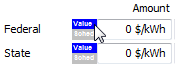
To specify a PBI using an annual schedule:
Click the grey and blue Value/Sched button so Sched is highlighted in blue. SAM replaces the variable’s value with an Edit button.

Click Edit.
Change Number of values to the the analysis period from the Financial Parameters page. The number of rows in the table should be the number of years in the analysis period.
In the table of values, either type a value in each row, or click Paste to paste values from your computer’s clipboard. Row 1 is for Year 1.
To delete a value, select it and press the Delete key on your keyboard.
You must type a value for each year. If you delete a value, SAM will clear the cell, and you must type a number in the cell or SAM will consider the schedule to be invalid. Type a zero for years with no value.