
Case Menu#
The case menu displays commands for the current case. Click the  arrow on the case tab to display the menu. See Keyboard Shortcuts for additional functions.
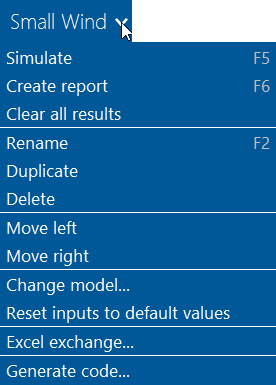
- Simulate
Runs a simulation for the current case. Equivalent to clicking the Simulate button.
- Create report
Run the report generator to create a PDF report for the current case. When you create a report, SAM first runs a simulation to be sure there are results to include in the report.
- Clear all results
Clears results from the current case. SAM removes any graphs you may have created for the case.
- Rename
Change the name of the current case.
- Duplicate
Create a copy of the current case.
- Delete
Delete the current case.
- Move left
Move the current case’s tab to the left in the toolbar.
- Move right
Move the current case’s tab to the right in the toolbar.
- Change model
Change the performance model, financial model, or both for the current case.
When you change one model, SAM retains the input values of the other model and assigns default values to the inputs of the model you changed. For example, if you change a PVWatts/Residential case to Detailed Photovoltaic/Residential, SAM keeps the Residential financial model’s inputs, and changes the performance model to detailed photovoltaic with its default values.
Note
Change Model does not preserve inputs between hybrid and non-hybrid, or between hybrid models because of the way input variables are defined for hybrid models. This will be fixed in an update.
- Reset inputs to default values
Replaces all inputs variable values with default values.
- Excel exchange
Configure the case for Excel Exchange to exchange input variable values with a Microsoft Excel workbook.
- Generate Code
Export the input variables for the current case to a text file containing code in one of the languages supported by the Software Development Kit.