
Notes#
The Notes feature allows you to store text associated with each input page and with the Results page.
To create notes:
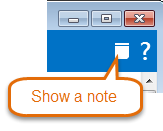
On any input page or the Results page, click the Show Note button at the top right of the window.
Type your text in the Notes window.
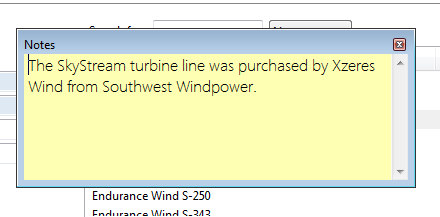
You can click the Notes window’s close button to hide the window and save your notes.
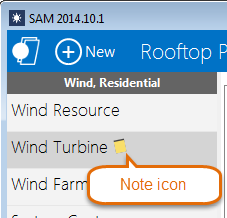
For input pages with a note, SAM displays a Note icon in the navigation menu indicating that there are notes associated with the input page.
For Results page notes, SAM creates a separate note for each tab (Summary, Graphs, etc.).
To delete a note:
Open the Notes window you want to delete.
Use your mouse to select all of the text in the note press the Delete key.
Close the Notes window by clicking the ‘x’ in the window’s top right corner. SAM will remove the appropriate Note icon from the navigation menu.