
Manage Cases#
A case is a complete set of input data and results. A project file contains at least one case. SAM uses tabs to display each case in the file, analogous to the way Excel displays worksheets in a workbook.
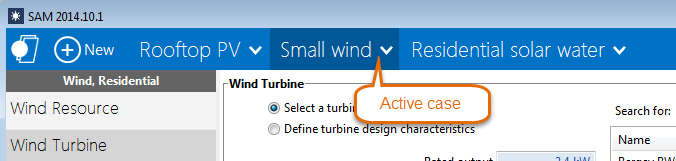
SAM highlights the active case name:
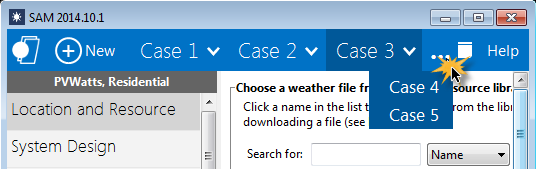
When there are more cases than can be displayed, click the ellipses to list the cases that are not visible:
Why Use Cases?#
By creating more than one case in a file, you can easily compare the assumptions and results of different analysis scenarios. For example, you could use cases to compare the cost and performance of a residential photovoltaic system in several locations by defining a separate case for each location, or you could compare a utility-scale photovoltaic and concentrating solar power systems.
Note
You can use the inputs browser to compare values of input variables in different cases.
Creating, Renaming, and Deleting Cases#
To create a new case in your file:
Click New.

To add, remove, and rename a case:
Click the
 arrow to display the case menu and click a command.
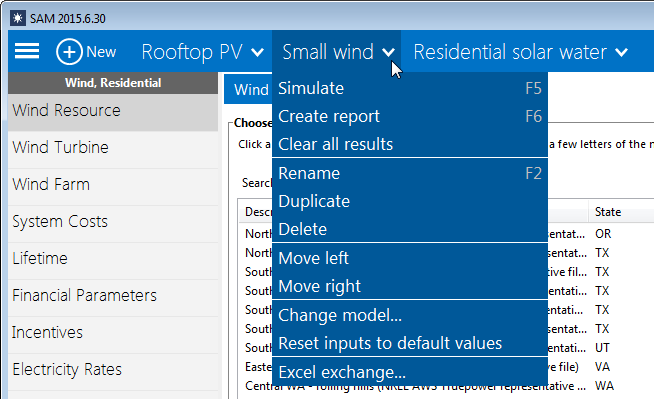
- Rename
Change the label identifying the case that appears on the case tab.
- Duplicate
Create a copy of the active case, with a duplicate set of input parameters and results.
- Delete
Delete the active case.
For a file with more cases than can fit on the toolbar, click the ellipses to show a list of cases that do not fit:
